Open the box gently. The clock is nested in a fold-out tray with everything you need to be running before Maghrib.
Your Athan ClockIn your chosen finish. Hand-finished engineered wood with a dot-matrix display.
USB-C cable (1.5 m)Braided, region-neutral. Connects the clock to the wall adapter.
Wall adapterRegion-specific (US / EU / UK plug). Outputs 5V, plenty for the clock.
Setup cardThis guide, in print — plus a welcome du'a from our team.
Tip · Save the box. If you ever need warranty service, repacking in the original packaging makes everything easier.
— 02 —
Plug it in.
~ 30 sec
Connect the USB-C cable to the back of the clock, then to the wall adapter. The screen will light up within seconds.
Find the USB-C portIt's on the back of the clock, centered along the bottom edge.
Plug in the cableIt only goes in one way — but the connector is reversible, so you can't get it wrong.
Connect to powerPlug the adapter into any outlet. The screen lights up and displays 00:00 on its seven-segment display.
You're ready to set upWhen you see 00:00, the clock is awake and waiting to be paired. The amber LED in the top-right corner pulses slowly.
Note · The clock stays on 00:00 until you finish setup in the app. Once you're done, it plays Bismillah hir Rahman ir Rahim and shows the time.
00:00
— 03 —
Download the app.
~ 1 min
Setup happens entirely from your phone. The MyAthanApp handles calculation methods, your athan choice, and Qur'an streaming — all your config in one place.
Open the App Store or Play StoreSearch for MyAthanApp — it's the one with our serif logo.
Install and open the appIt's free, lightweight, and has no ads. No account or sign-in needed — open it and you're ready.
Tap 'Connect Clock'The app will ask permission to use Bluetooth — this is how it finds your clock for the initial Wi-Fi handshake.
Bring your phone close to the clockThe app will detect it within a few seconds. Tap to pair.
Why an app? · Setup over the app is faster than typing on a tiny display. Once you're set, the clock runs entirely on its own.
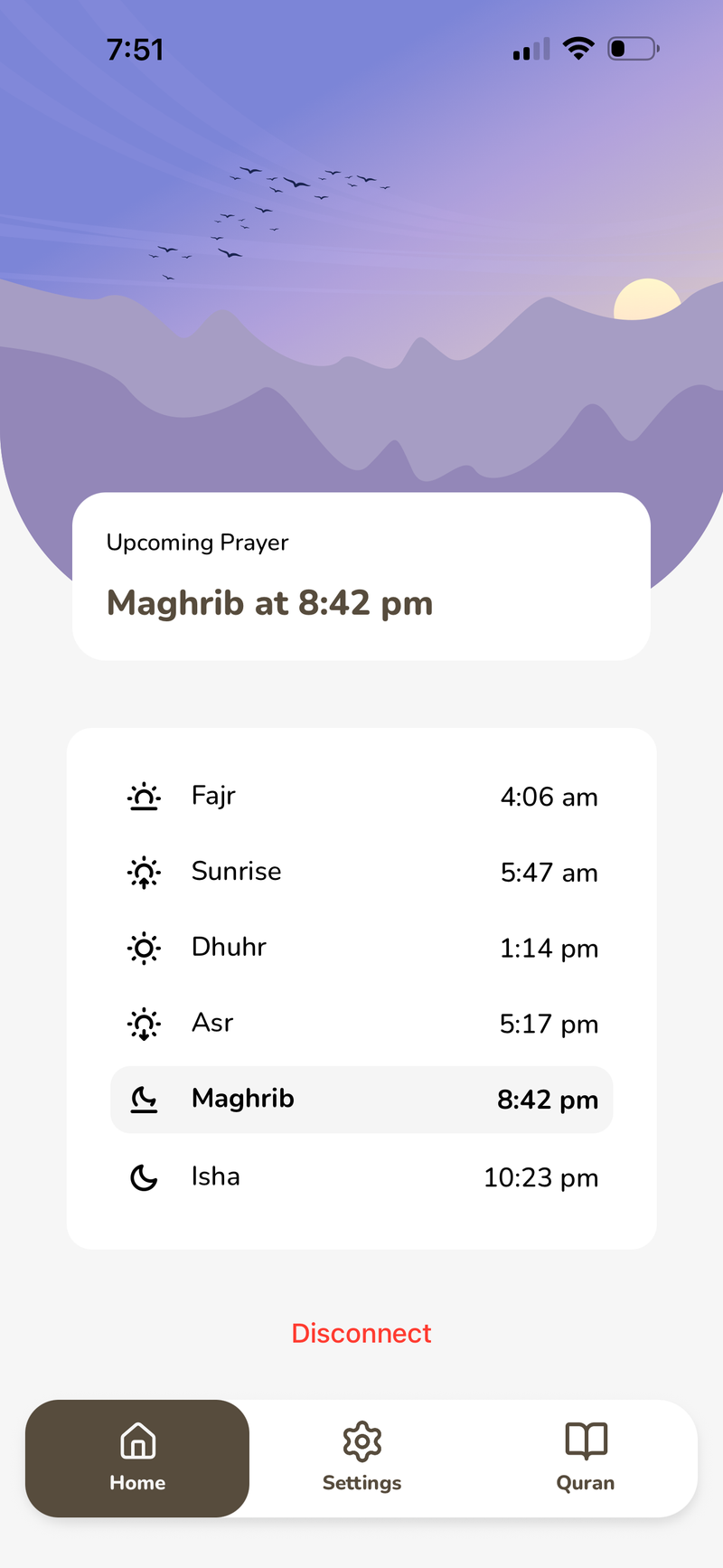
The clock calculates prayer times on-device, so this is the most important step. You'll choose your city, calculation method, and madhab — set it once, and it travels with you.
Allow location accessThe fastest way — the app uses your phone's location, then you'll confirm the city name. Your location stays on-device.
Pick your calculation methodEight options are built in. Common choices: ISNA in North America, MWL for Europe, Makkah for the Gulf.
Choose your madhabThis affects Asr timing only. Pick Standard for the earlier Asr, or Hanafi for the later.
Set offsets (optional)If your local mosque calls a couple minutes earlier or later, set per-prayer offsets up to ±60 minutes.
— 05 —
Choose your athan.
~ 2 min
On the Athan Selection page you choose a reciter for each prayer individually — or toggle any prayer off if you don't want its athan to play. Pick from our curated library, or upload your own recording.
Choose a reciter per prayerEach prayer — Fajr, Dhuhr, Asr, Maghrib, Isha — has its own dropdown. Tap to pick a different reciter for each one. Fajr has its own softer recitations.
Toggle any prayer on or offUse the switch beside each prayer. Turn one off and the clock simply won't play that athan — the time still shows on the display.
Upload your own (optional)Tap Upload Custom Athan to add a recording from your local mosque or family — MP3, WAV, or M4A.
Tip · Preview any reciter by selecting them — the clock plays a short sample so you can hear it in the room before you commit.
— 06 —
Set your volume & brightness.
~ 1 min
The last step. From the Settings tab, set how loud the athan plays and how bright the display sits in your room — then let automatic night mode handle the rest.
Set the volumeDrag the Volume slider to set how loudly the athan plays through the clock. Test it in the room and adjust to taste.
Set the brightnessThe Brightness slider controls how bright the display glows. Lower it for bedrooms, raise it for bright living rooms.
Turn on Automatic Night ModeWith this enabled, the display dims itself automatically at night — no glare while you sleep, full brightness through the day.
Fine-tune in Advanced SettingsTap Athan Settings or Clock Settings for finer control any time.
That's it · Once you've set these, your clock is fully configured. It runs on its own from here — no daily fiddling.
You're all set.
Your Athan Clock is ready — it just played Bismillah hir Rahman ir Rahim and switched from 00:00 to the time. Set it somewhere you'll see it, and let it do its quiet work.